Claude in China, the API is not very friendly. Can I use other AI models besides Claude's official models?
This section will teach you in detail how to configure multiple mainstream domestic AI model APIs so that Claude Code supports:
| Vendor/Brand | Description | API Application Link |
|---|---|---|
| DeepSeek (Domestic High Cost-Effectiveness) | Official models: deepseek-chat / deepseek-reasoner | https://platform.deepseek.com/api_keys |
| Alibaba Bailian (Tongyi Qianwen) | Alibaba Cloud LLM unified entry, supports qwen-max, qwen-turbo, etc. | https://bailian.console.aliyun.com |
| GLM (Zhipu Qingyan) | Tsinghua ChatGLM series, supports GLM-4, GLM-3-Turbo, etc. | https://open.bigmodel.cn |
| MiniMax | Domestic multi-modal, supports text, voice, image mixed calls | https://platform.minimaxi.com |
| MomoAI (OpenAI Compatible Aggregator) | Provides highly available OpenAI compatible interface, supports multi-model unified access, main domain: api.momoai.pro, API gateway: https://api.dreamly.space | https://api.momoai.pro/console |
After entering the corresponding console, register/login → complete identity verification → create API Key to start calling.
Step 1: Apply for a Free API Key
Taking MomoAI as an example, it's an aggregated API service provider offering OpenAI-compatible interfaces. Through the unified gateway https://api.dreamly.space, you can conveniently access multiple models in Claude Code, making it ideal for a "multi-model hub".
- Login to api.momoai.pro
- After login or registration, you can see the welcome page with quick tokens
- Record the API key and base_url (
https://api.dreamly.space) - There are copy buttons, you can copy directly later

In the following sections about OpenAI-compatible protocol configuration, you can directly replace baseURL with https://api.dreamly.space and apiKey with the Key you obtained from the MomoAI console for seamless integration.
API Management Tools
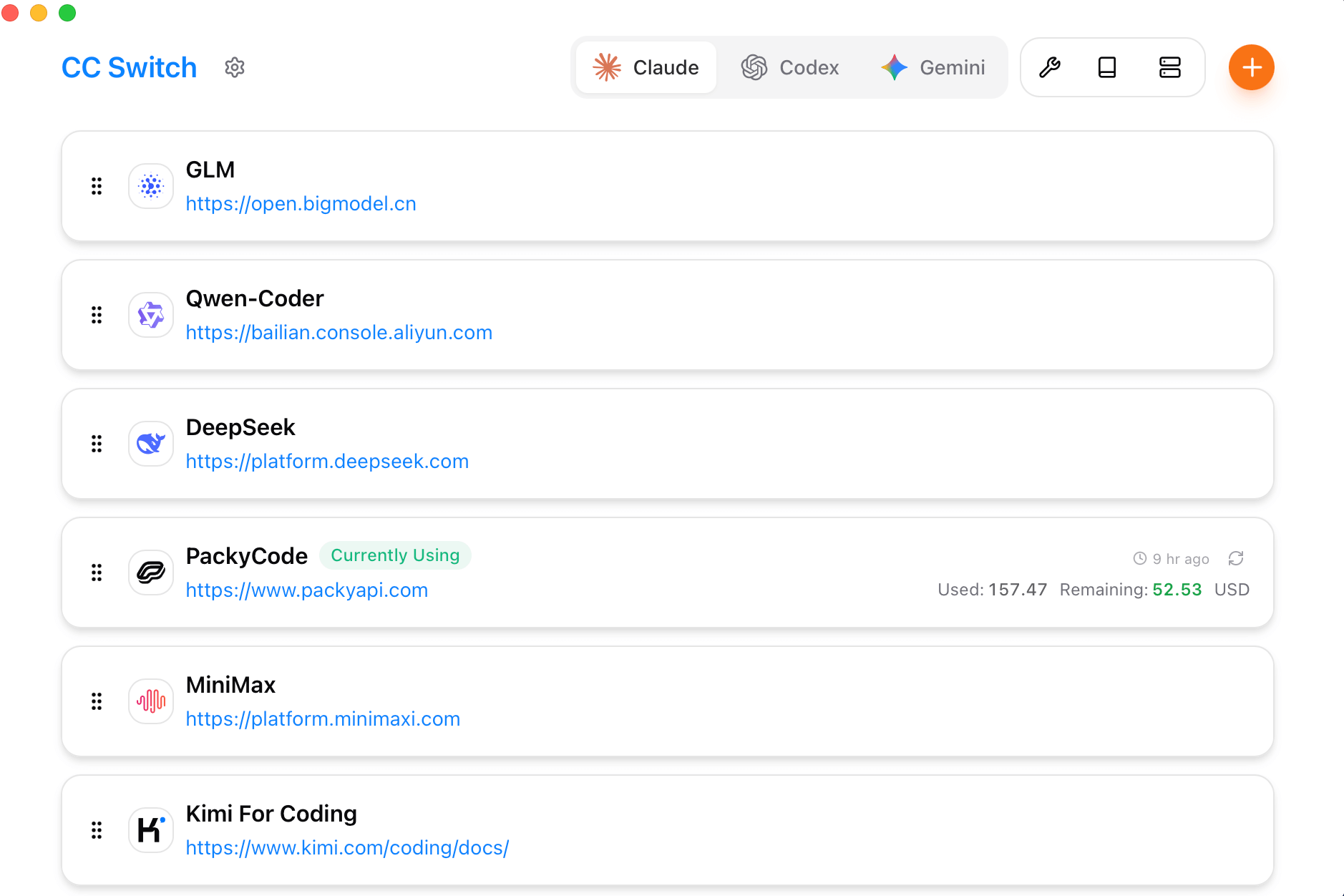
With multiple platforms, configuration becomes cumbersome. We can use the third-party tool CC Switch to easily manage API configurations for these popular tools: https://github.com/farion1231/cc-switch/, supporting Windows / macOS / Linux.
CC Switch is a comprehensive auxiliary tool for Claude Code / Codex / Gemini CLI.
CC Switch helps you easily manage API configurations for these popular tools, like having a smart organization assistant for your development toolbox, with all tool configurations managed orderly.
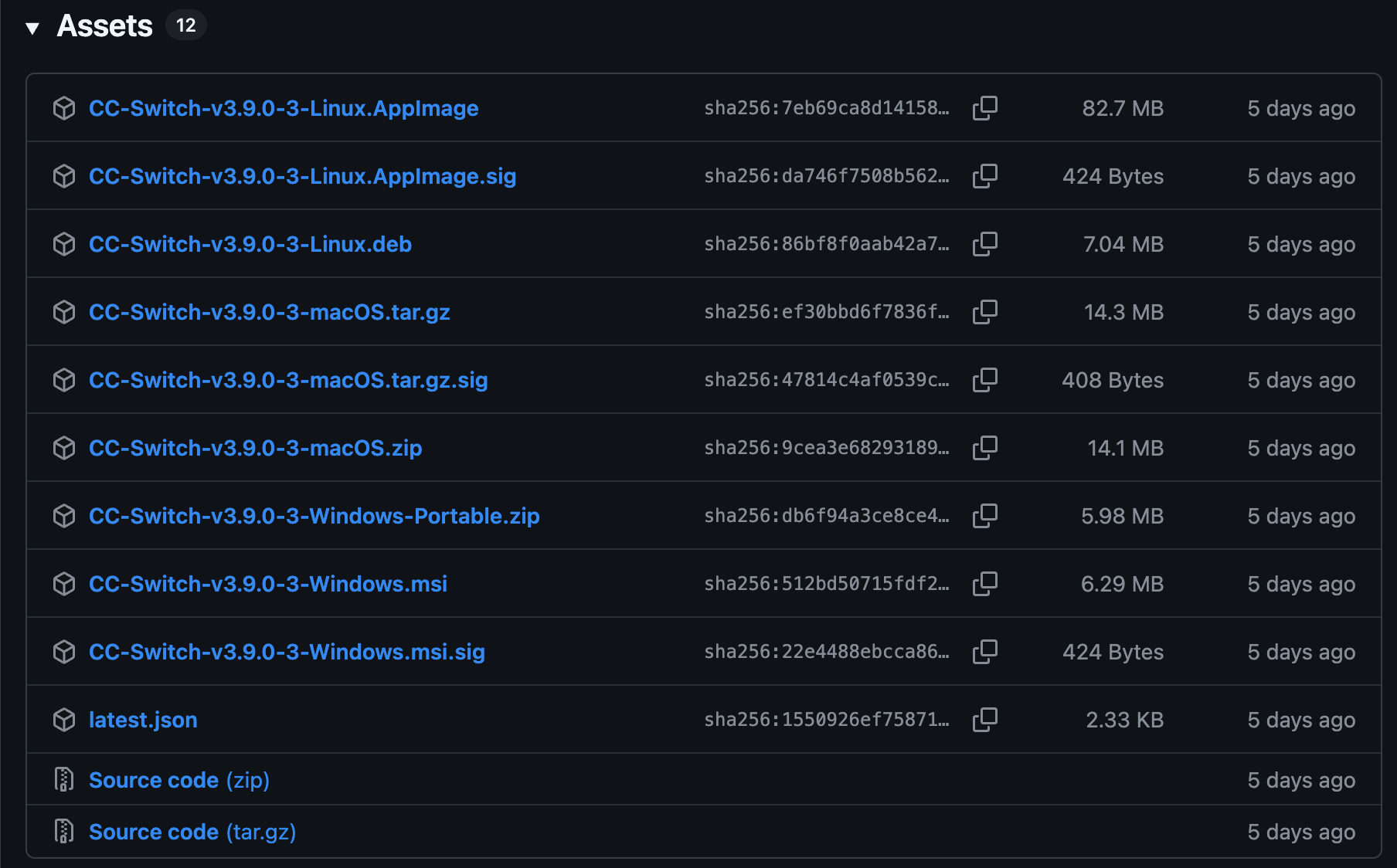
Download links for all platform installation packages: https://github.com/farion1231/cc-switch/releases.
For specific operation settings, refer to the article: https://mp.weixin.qq.com/s/pa9Gpim7jVXsUtEM8JwnSg
If you don't mind the hassle, you can refer to the following sections to configure yourself.
Configuration Overview
Claude Code supports two main configuration methods:
Method 1: Environment Variables
export ANTHROPIC_API_KEY="your-api-key"
export OPENAI_API_KEY="your-openai-compatible-key"
Advantages:
- Simple configuration
- No need to modify project files
- Easy to switch between environments
Disadvantages:
- Need to set again after each terminal restart
- Inconvenient to manage multiple models
Method 2: Configuration File
Create .claude/config.json or use global configuration file.
Advantages:
- Can configure multiple models
- Persistently saved
- Support advanced options
Disadvantages:
- Relatively complex configuration
- Need to understand JSON format
We will focus on the configuration file method as it is more powerful and better suited for multi-model management.
DeepSeek Integration with Claude Code
Configure in Environment Variables
After installing Claude Code, set the following environment variables in the terminal:
export ANTHROPIC_BASE_URL=https://api.deepseek.com/anthropic
export ANTHROPIC_AUTH_TOKEN=${DEEPSEEK_API_KEY} # Remember to set your API key here
export API_TIMEOUT_MS=600000
export ANTHROPIC_MODEL=deepseek-chat
export ANTHROPIC_SMALL_FAST_MODEL=deepseek-chat
export CLAUDE_CODE_DISABLE_NONESSENTIAL_TRAFFIC=1
Parameter Description:
API_TIMEOUT_MS=600000: Set 10-minute timeout to prevent output length from triggering client timeoutANTHROPIC_MODEL: Specify deepseek-chat modelCLAUDE_CODE_DISABLE_NONESSENTIAL_TRAFFIC=1: Disable non-essential traffic
Then enter the project directory and execute the claude command to start using it.
cd my-project
claude
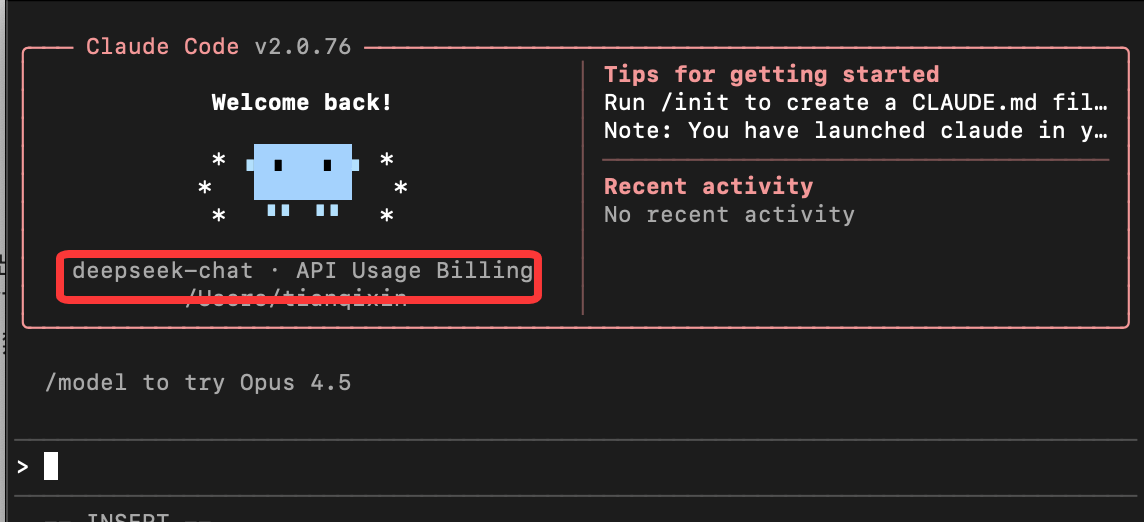
Project Configuration File
Create .claude folder and configuration file in your project root:
mkdir -p .claude
vim .claude/config.json
Add DeepSeek configuration:
{
  "models": {
    "deepseek-chat": {
      "provider": "openai-compatible",
      "apiKey": "${DEEPSEEK_API_KEY}",
      "baseURL": "https://api.deepseek.com/v1",
      "model": "deepseek-chat",
      "temperature": 0.7,
      "maxTokens": 4096
    },
    "deepseek-coder": {
      "provider": "openai-compatible",
      "apiKey": "${DEEPSEEK_API_KEY}",
      "baseURL": "https://api.deepseek.com/v1",
      "model": "deepseek-coder",
      "temperature": 0.3,
      "maxTokens": 8192
    }
  },
  "defaultModel": "deepseek-chat"
}
If you are using MomoAI's OpenAI-compatible gateway, you can also replace
baseURLwithhttps://api.dreamly.spaceandapiKeywith the Key you obtained from the MomoAI console. This allows you to uniformly integrate DeepSeek and other models into Claude Code through the same configuration.
Configuration Description:
| Field | Description | Example Value |
|---|---|---|
provider | API provider type | "openai-compatible" |
apiKey | API key | "${DEEPSEEK_API_KEY}" use environment variable |
baseURL | API endpoint | "https://api.deepseek.com/v1" |
model | Model name | "deepseek-chat" |
temperature | Randomness (0-2) | 0.7 (balanced), 0.3 (precise) |
maxTokens | Max output length | 4096 |
After starting Claude Code, specify DeepSeek:
claude --model deepseek-chat
Or switch in interactive mode:
> /model deepseek-chat
Enter /model to view supported models:
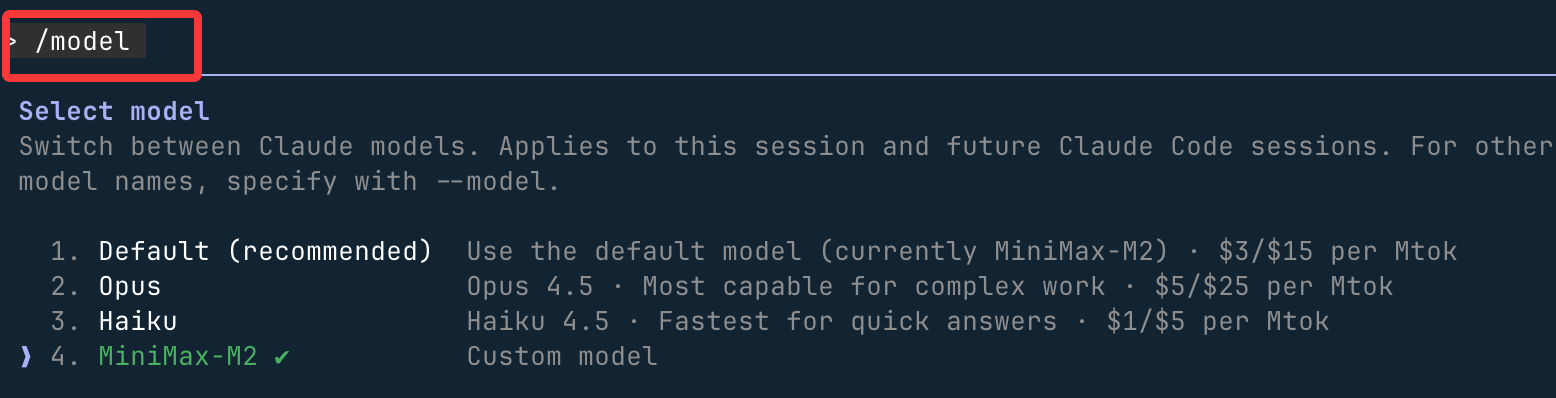
Reference documentation: https://api-docs.deepseek.com/en/guides/anthropic_api
Zhipu LLM Integration with Claude Code
This section uses ~/.claude/settings.json file to configure large models. Before starting, you need to get the API key from the official platform: GLM Coding Plan.
Edit or add to Claude Code configuration file ~/.claude/settings.json, add or modify the env field:
# Note: Replace your_zhipu_api_key with the API Key you obtained in the previous step
{
    "env": {
        "ANTHROPIC_AUTH_TOKEN": "your_zhipu_api_key",
        "ANTHROPIC_BASE_URL": "https://open.bigmodel.cn/api/anthropic",
        "API_TIMEOUT_MS": "3000000",
        "CLAUDE_CODE_DISABLE_NONESSENTIAL_TRAFFIC": 1
    }
}
Run claude to start Claude Code, enter /status to confirm model status:
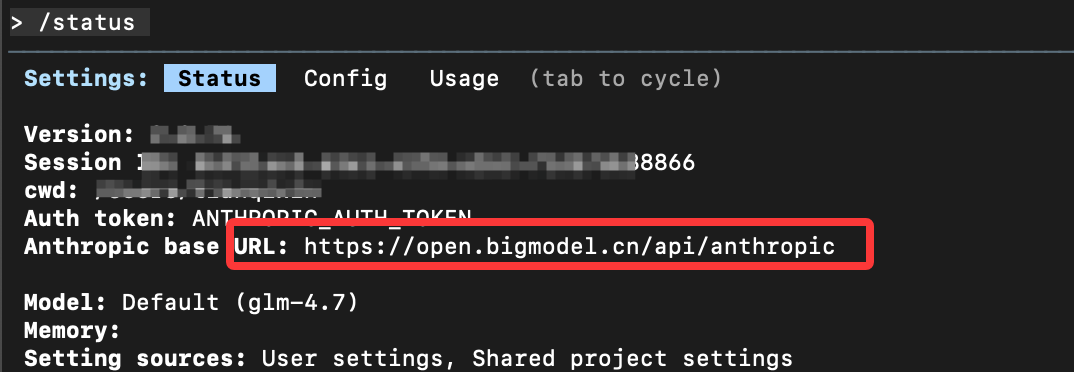
If not, you can enter /config to switch models.
VS Code Claude Code Extension
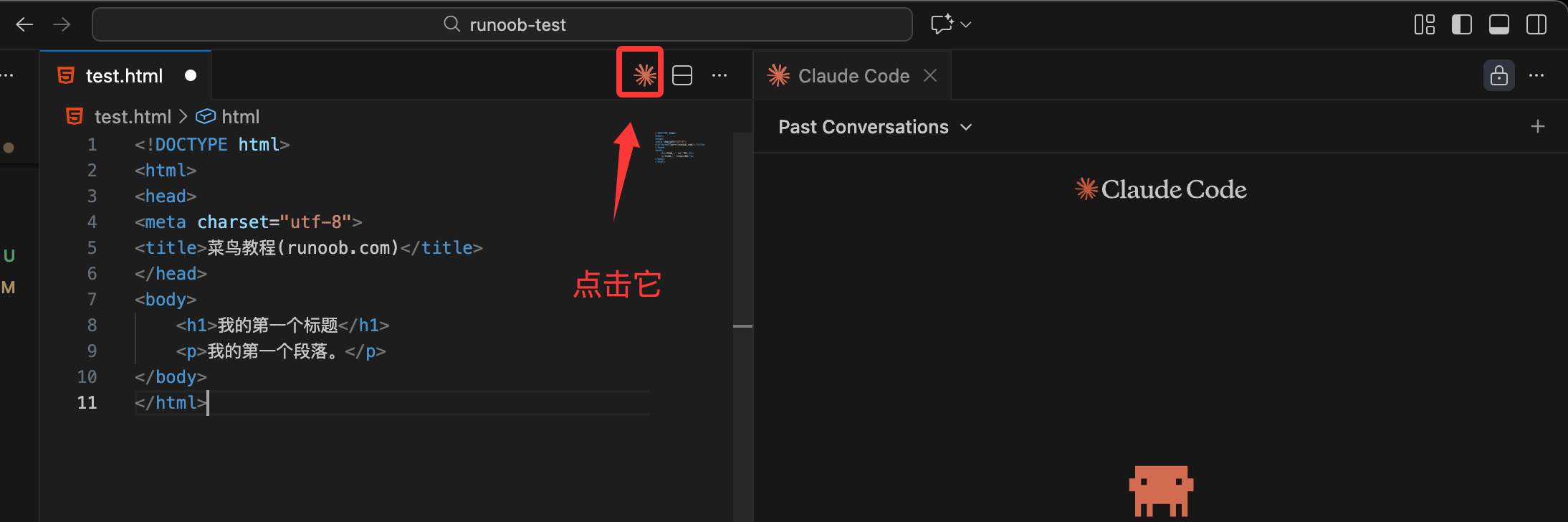
If you prefer not to use the Claude Code command line, you can install Claude Code in the VS Code editor.
Open VS Code, go to extension marketplace, search for Claude Code and install:

After installation, click the Claude Code icon in the top right corner to enter the Claude Code page:
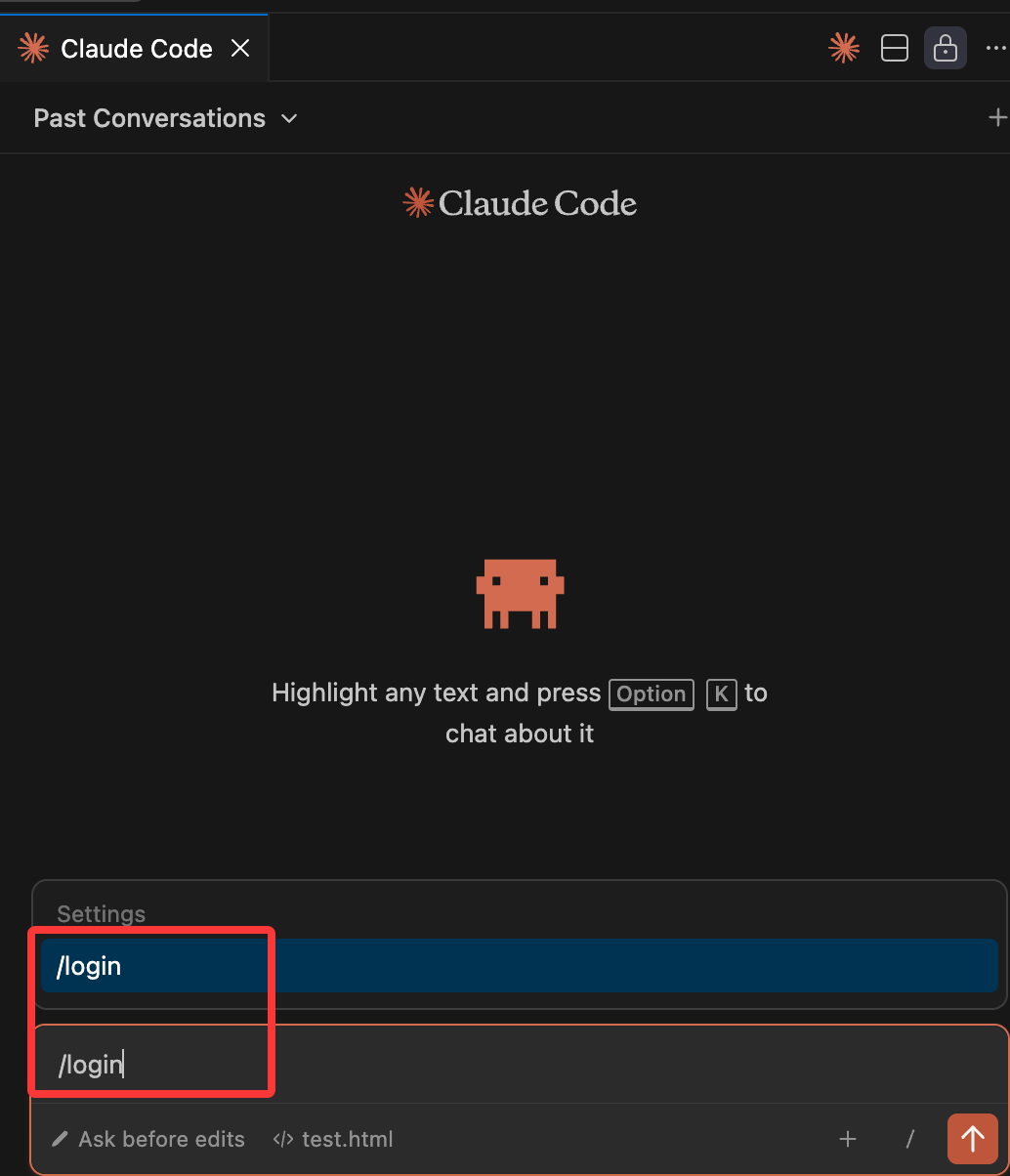
This way, users with accounts can use /login to log in:
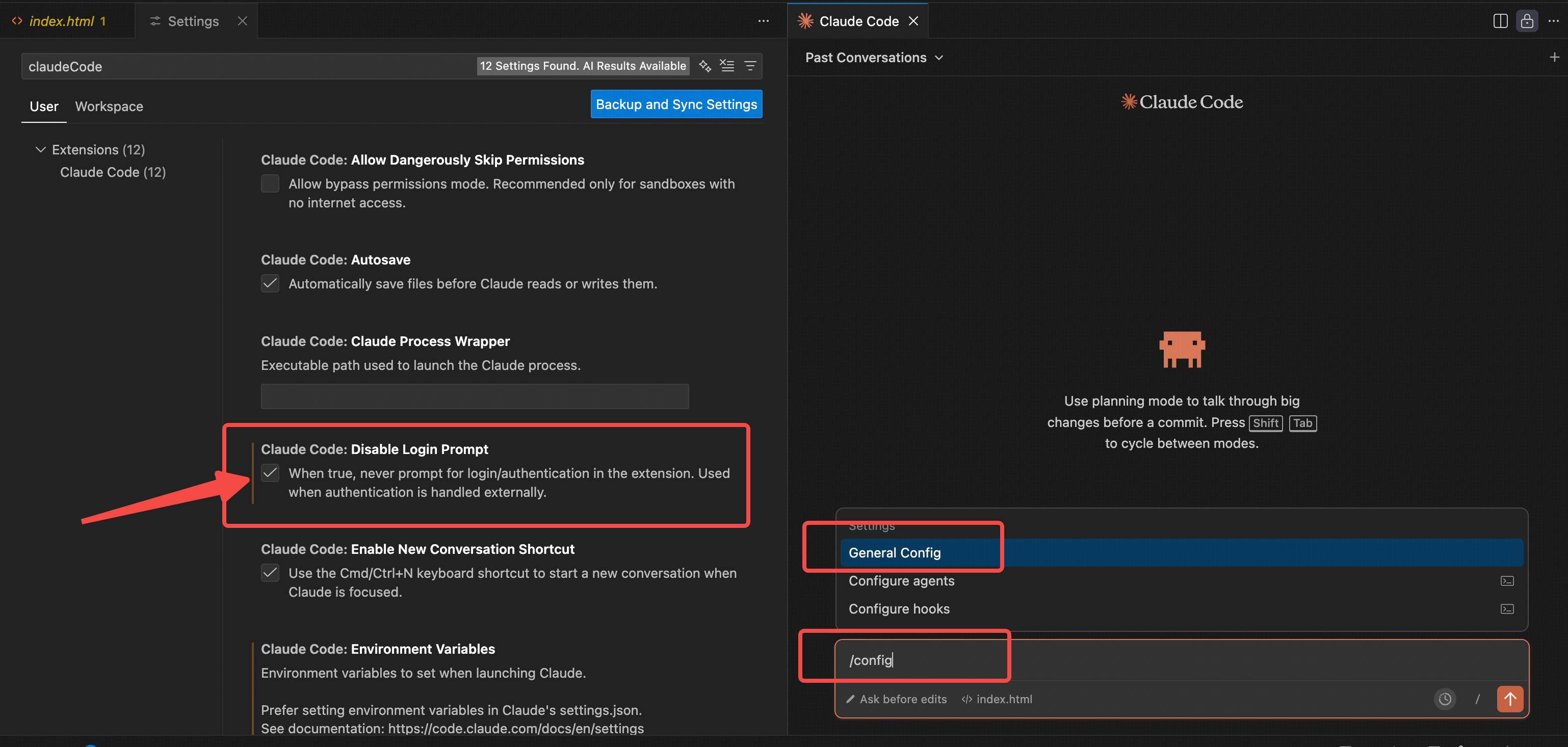
You can also enter /config in the dialog box to enter settings, check "Disable Login Prompt" configuration to close the login page:
Contact MOMO AI Official
- Email: partnership@momoai.wecom.work
- Business: 13716105018
- Technical Support: 13815831618